

How to make a PWA work offline: service worker caching strategies with code
Build an offline-capable PWA: register a service worker, precache your app shell, choose between cache-first, network-first and stale-while-revalidate, and test offline mode.

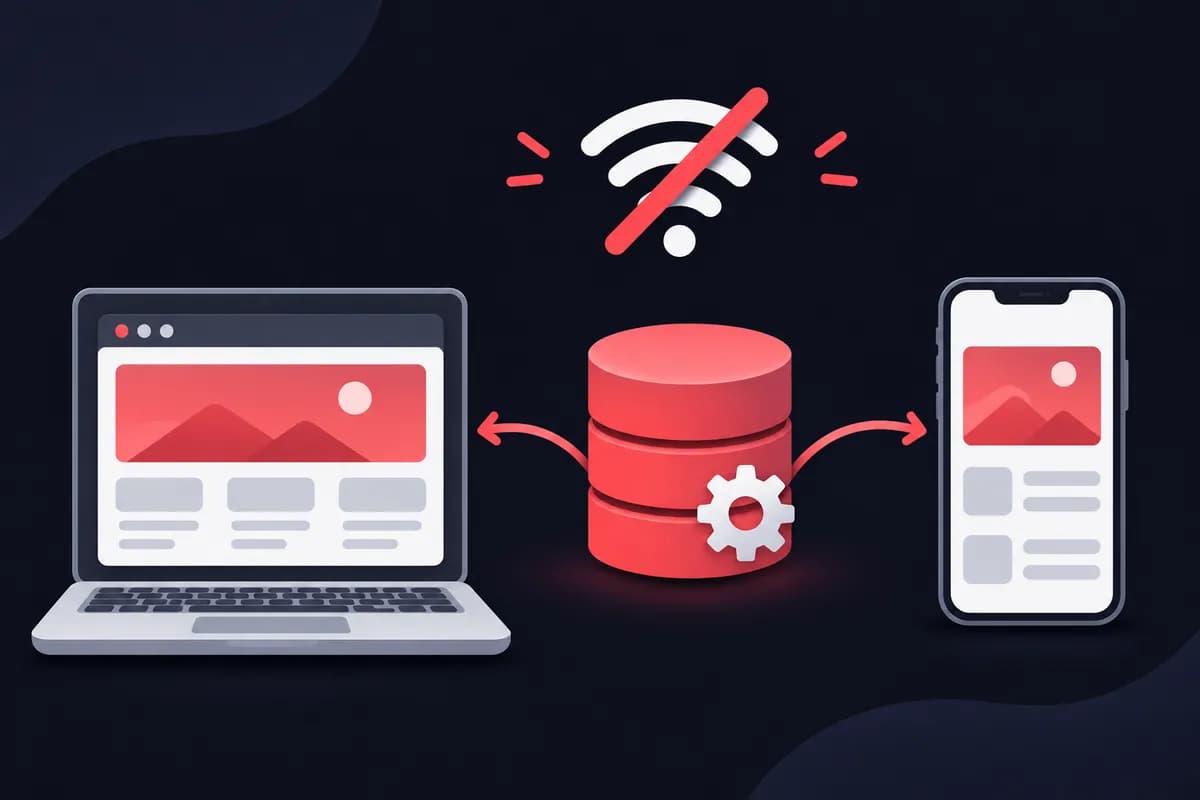
A service worker is a script that sits between your web app and the network. It can answer requests from a cache instead of the internet, which is what makes a PWA open and work without a connection. The code is short; the hard part is choosing what to cache and when to update it. This guide gives you a working starting point and the rules that keep it from going stale.
This is the maker's side of offline. If you want to check whether an app you use really works offline, read how to tell if a web app works offline instead.
How a service worker works
According to MDN, service workers act as proxy servers between web applications, the browser and the network. They run separately from the page, need HTTPS, and are driven by events:
- install runs once when a new worker is found. This is where you precache files.
- activate runs when the new worker takes over. This is where you delete old caches.
- fetch runs for every request from pages the worker controls. This is where you decide: cache, network or both.
Step 1: register the worker
// in your page's JavaScript
if ("serviceWorker" in navigator) {
  window.addEventListener("load", () => {
    navigator.serviceWorker.register("/sw.js");
  });
}
Put `sw.js` at the root of your site. The folder it lives in sets its scope: a worker at `/sw.js` can control the whole site, while one at `/assets/sw.js` controls only `/assets/`.
Step 2: a minimal worker with an app shell and an offline page
const VERSION = "v1";
const SHELL_CACHE = "shell-" + VERSION;
const PAGES_CACHE = "pages-" + VERSION;
const SHELL = ["/", "/offline.html", "/styles.css", "/app.js", "/icons/icon-192.png"];

self.addEventListener("install", (event) => {
  event.waitUntil(caches.open(SHELL_CACHE).then((cache) => cache.addAll(SHELL)));
  self.skipWaiting();
});

self.addEventListener("activate", (event) => {
  event.waitUntil(
    caches.keys().then((keys) =>
      Promise.all(
        keys
          .filter((key) => ![SHELL_CACHE, PAGES_CACHE].includes(key))
          .map((key) => caches.delete(key)),
      ),
    ).then(() => self.clients.claim()),
  );
});

self.addEventListener("fetch", (event) => {
  const request = event.request;
  if (request.method !== "GET") return;

  // Pages: network first, fall back to cache, then to the offline page.
  if (request.mode === "navigate") {
    event.respondWith(
      fetch(request)
        .then((response) => {
          const copy = response.clone();
          caches.open(PAGES_CACHE).then((cache) => cache.put(request, copy));
          return response;
        })
        .catch(async () => (await caches.match(request)) || caches.match("/offline.html")),
    );
    return;
  }

  // Static files: cache first.
  event.respondWith(
    caches.match(request).then((cached) => cached || fetch(request)),
  );
});
Create a simple `offline.html` that says what is available offline and how to retry. This one file turns the browser's dinosaur or error page into a branded fallback.
Change the VERSION string whenever you change the shell files. The activate step deletes caches whose names no longer match, which is how users get the new files instead of old ones forever.
Choosing a caching strategy
There is no single best strategy. Match it to what the file or request is.
| Strategy | How it works | Good for | Watch out for |
|---|---|---|---|
| Cache first | Answer from the cache; go to the network only if missing | Versioned CSS, JS, fonts, icons, images | Stale files if the name does not change when the content does |
| Network first | Try the network; fall back to the cache when offline | HTML pages, API data that changes often | Slow on bad networks unless you set a timeout |
| Stale while revalidate | Answer from the cache immediately, update the cache in the background | Avatars, feeds, non-critical data | The user sees the previous version once |
| Network only | Never cache | Payments, auth, one-off actions | Fails offline by design |
| Cache only | Only the precached shell | Fixed offline shell files | Must be precached or it fails |
Stale while revalidate in code
async function staleWhileRevalidate(request, cacheName) {
  const cache = await caches.open(cacheName);
  const cached = await cache.match(request);
  const network = fetch(request)
    .then((response) => {
      if (response.ok) cache.put(request, response.clone());
      return response;
    })
    .catch(() => cached);
  return cached || network;
}
Offline data: caches are not a database
The Cache API stores request and response pairs, which suits files and API snapshots. For user data that people create or edit offline, such as notes, drafts or a to-do list, use IndexedDB, and sync it when the connection returns. A simple approach that works everywhere is an outbox: save the change locally, mark it pending, and try to send pending items on load and when the `online` event fires.
- Show the user what happened: Saved on this device, will sync when online.
- Resolve conflicts on purpose: last write wins is simple, but tell the user when it can overwrite something.
- Do not assume the browser keeps data forever. Safari's storage rules and quotas differ from Chrome's; WebKit documents quotas of up to 80% of disk for a browser app and up to 20% for other apps, so keep a server copy of anything valuable.
- Background Sync is not available on iPhone, so do not depend on it. Sync when the app opens.
Step 3: test offline mode
Open Chrome DevTools
On the page, press F12 and go to Application, then Service workers.
Check the worker is activated
You should see it listed with a status. Tick Update on reload while developing.
Inspect Cache storage
Open Cache storage and confirm the shell files are in the cache you named.
Tick Offline and reload
The page should load from the cache. Navigate to a page you have not visited and check the offline fallback appears.
Test on a real phone
Install the app, open it online once, switch to airplane mode and launch it from the icon.
You can also run the page through the PWA checker to see whether the manifest and service worker are detected, and the installability test for the install criteria.
Common pitfalls
- Caching the HTML shell forever. A cache-first strategy for `index.html` can lock users on an old version. Prefer network first for pages, or version the cache and update the shell on activate.
- Forgetting `skipWaiting` and `clients.claim`. Without them a new worker waits until every tab closes. Decide whether you want an immediate takeover or a prompt that says Update available.
- Caching error responses. Check `response.ok` before `cache.put`.
- Caching POST requests or authenticated data. Only GET requests can be cached by the Cache API, and private data should not sit in a shared cache.
- Huge precache lists. Precache the shell, not the whole site. Cache images and articles as the user opens them.
- Opaque responses. Cross-origin requests without CORS cannot be inspected and can fill your quota with unknown sizes.
- No offline page. The browser's default error screen makes the app look broken.
When to use Workbox
Hand-written workers are fine for a small site. For a larger one, Workbox provides tested modules for precaching with revisioned URLs, routing and the strategies in the table, which removes most of the bookkeeping. The principles in this guide still apply, because you still choose the strategy per route.
List the three most important things your users do. Decide which of them must work with no connection, which can wait, and what the app says when something cannot work. Then cache accordingly. The MDN offline tutorial walks through a small example.
Once your app works offline, make sure it is installable with a good manifest, and see what users can expect on iPhone and Android.