

How to turn a PWA into an Android APK or app bundle (Bubblewrap and PWABuilder)
Step-by-step: package a progressive web app as an Android app with Trusted Web Activity, using Bubblewrap or PWABuilder, set up Digital Asset Links and publish to Google Play.
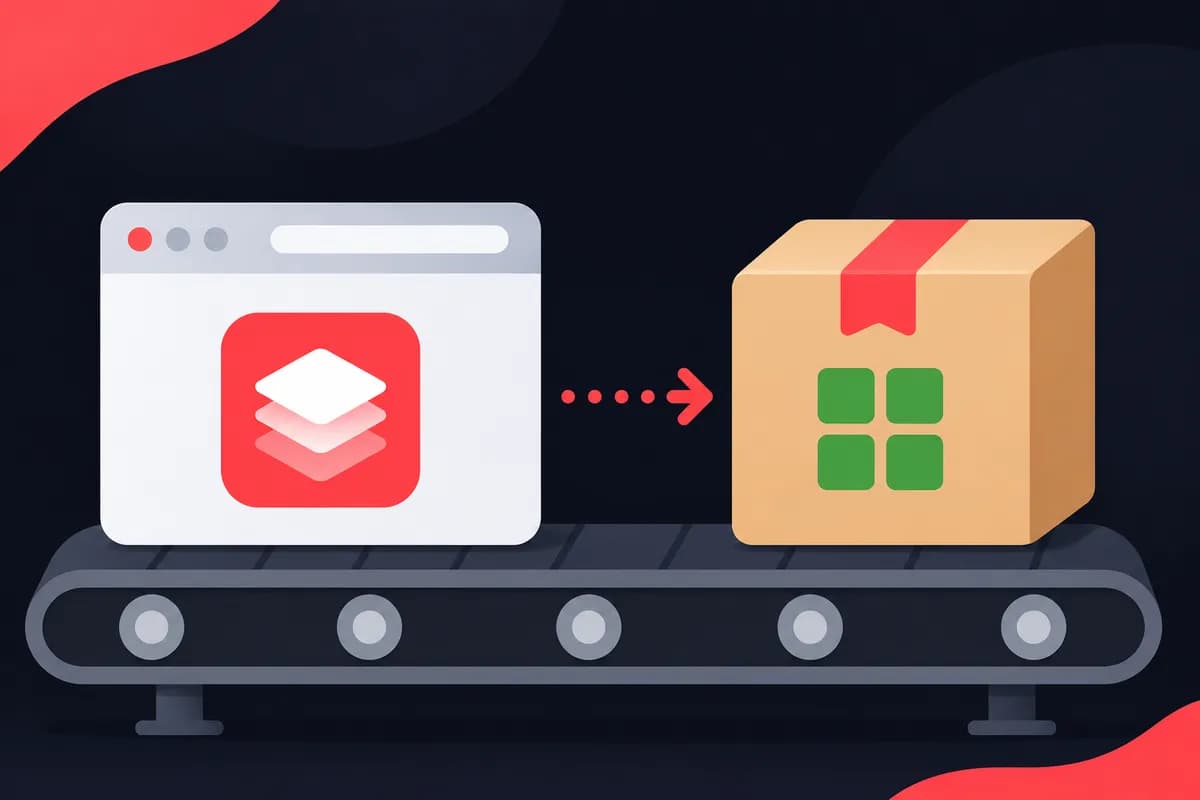
A progressive web app does not need a store to reach Android users, but some people only look in Google Play, and you may want an installable file you can share. The standard answer is a Trusted Web Activity: a thin Android app that opens your PWA full screen in Chrome with no browser bar. Tools such as Bubblewrap and PWABuilder produce the APK or app bundle for you.
Before you start, check that your site is ready with the APK readiness checker. It looks at the manifest, icons and installability, which are the same things the packaging tools depend on.
What you are actually building
Chrome's documentation describes Trusted Web Activities as a way to open your web content in a native Android app without browser UI, using the Chrome engine on the device. The result behaves like any other Android app: it has an icon, appears in the launcher and can be published to Google Play. The content is still your website, so updates to the site reach users without a new release. The same documentation says that to meet the verification requirements you should meet the Add to Home Screen requirements, which you can audit with Lighthouse.
| Output | What it is | Use it for |
|---|---|---|
| APK | A single installable Android package | Direct download, testing, sharing outside the store |
| AAB (Android App Bundle) | The publishing format Google Play uses | Uploading to Google Play |
Checklist before you package
- The site is served over HTTPS on a stable domain.
- The manifest is installable: name, 192 and 512 pixel icons, start URL and display mode. See the manifest guide.
- A maskable 512 pixel icon, so the launcher icon is cropped well.
- A stable `start_url` that returns 200 without redirecting through a login.
- For Google Play: a developer account. PWABuilder's documentation lists a one-time $25 fee and says packages it generates need Android 7.0 (API level 24) or newer.
Option 1: PWABuilder (no command line)
PWABuilder's Android platform uses the Bubblewrap tool to generate a Trusted Web Activity. It is the quickest route if you do not want to install the Android toolchain.
Enter your site's URL at pwabuilder.com
It analyses your manifest and service worker and tells you what is missing.
Choose the Android package
Fill in the package ID (for example com.example.notes), app name, version and signing options.
Generate and download
You receive a zip with the signed packages and a file with your signing key details. Keep the key safe: you need it for every update.
Add the Digital Asset Links file
PWABuilder gives you the assetlinks.json snippet containing your signing key fingerprint. Upload it to your site (see below).
Test on a device
Install the APK on an Android phone, open it and check that the browser bar is gone.
Option 2: Bubblewrap CLI
Bubblewrap is the command-line tool maintained by Google Chrome Labs. On first run it offers to download the Java and Android tools it needs, and the quick start recommends allowing that.
npm install -g @bubblewrap/cli

mkdir my-twa && cd my-twa
bubblewrap init --manifest=https://example.com/manifest.webmanifest
bubblewrap build- init reads your manifest and asks for the package name, signing key location and a few app settings. It creates an Android project in the folder.
- build compiles the project and signs it with the key you created. The output is a signed APK and an app bundle in the project folder.
- Install the APK on a device or emulator: `bubblewrap install`, or copy the file across.
The key and its password identify your app. If you lose them you cannot publish updates under the same listing. Store them somewhere safe and never commit them to a public repository.
Digital Asset Links: why the address bar may still show
A Trusted Web Activity only hides the browser bar if your website confirms that the app is allowed to open it. That confirmation is a JSON file at `/.well-known/assetlinks.json` on your domain, containing your package name and the SHA-256 fingerprint of the key that signs the app. If verification fails, the app falls back to a normal custom tab with a visible address bar, which is the most common reason people say their TWA "looks like a website".
[
  {
    "relation": ["delegate_permission/common.handle_all_urls"],
    "target": {
      "namespace": "android_app",
      "package_name": "com.example.notes",
      "sha256_cert_fingerprints": ["AA:BB:CC:...:ZZ"]
    }
  }
]- Serve it over HTTPS at exactly `https://your-domain/.well-known/assetlinks.json`, with a 200 status and no redirect.
- Use the fingerprint of the key that signs the build you install. If you publish through Google Play with Play App Signing, add the Play signing key fingerprint as well as your upload key.
- The `package_name` must match the package ID of the app.
- Reinstall the app after you fix the file; Android caches verification results.
Publishing to Google Play
Create a Play Console account
There is a one-time registration fee; PWABuilder's documentation lists it as $25.
Create the app and fill in the listing
Name, description, screenshots, icon, content rating and privacy policy URL.
Upload the app bundle
Use the AAB output. Play requires bundles for new apps.
Test on a closed track first
Use internal or closed testing to check the installed app, the domain verification and the offline behaviour.
Release
Submit for review. Reviews can take from hours to days.
Policies, target API levels and developer verification requirements change often, so check Google's current Play Console help before you submit.
After release
- Content changes come from your website, so you do not need to ship a new package for them.
- Rebuild and release when you change the icon, name, package settings or the Android target version Play asks for.
- Keep the manifest, icons and asset links stable. Changing the signing key without updating assetlinks.json brings the address bar back.
- Make sure the app works offline with a service worker so users do not see a blank screen without a connection.
If you only need Android users to install your app, a PWA already installs from Chrome without a store. See how to install a PWA and the comparison of PWAs and native apps.